
To edit your Little Free Library, log in to your steward account in the Little Free Library mobile app or steward web portal. The app and web portal are synced. If you make a change in the app, that change is immediately reflected in the web portal and vice versa.
App #
Tap the My Library section of the main menu. If you steward more than one little library, you will see a list of all of your little libraries on this screen. Tap on the library you would like to edit.
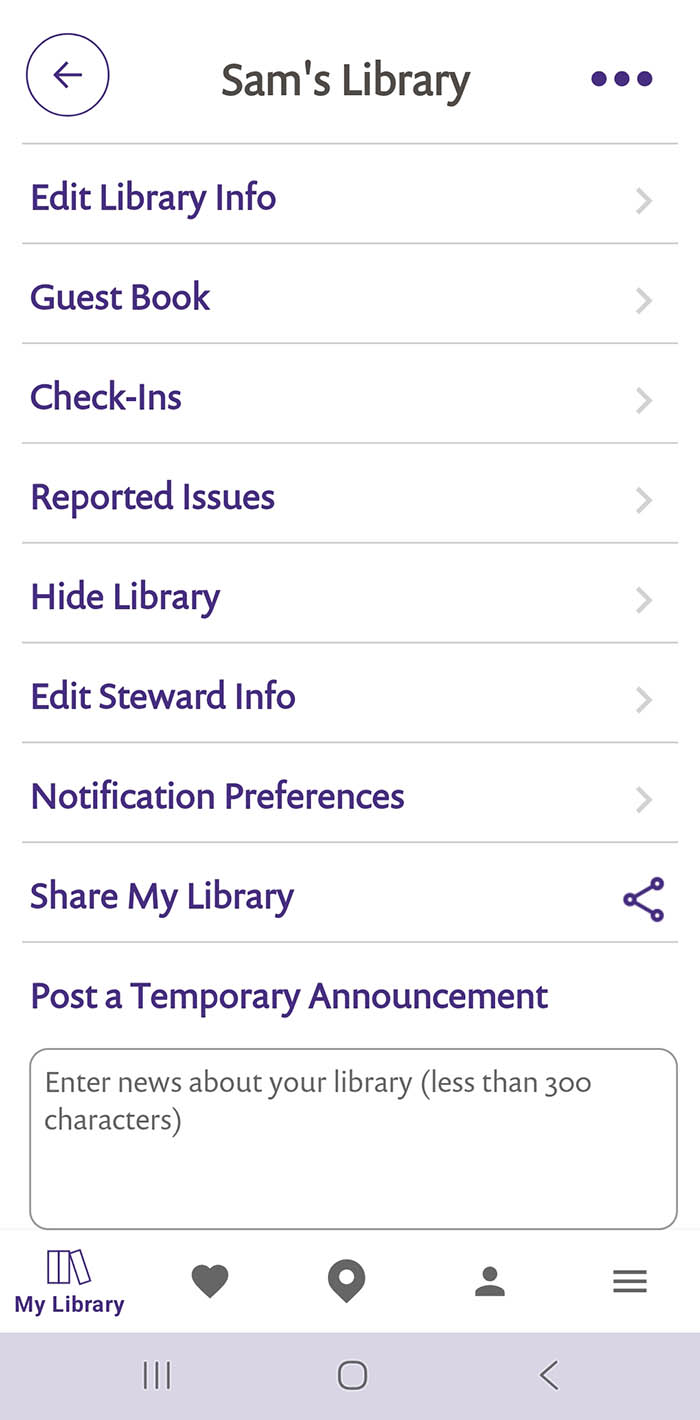
You now have several options! You can post a temporary announcement or select your library’s Tags right from this screen. Tap the triple-dot icon in the upper-right of your screen to get the Transfer Library option to appear. Tap Guest Book to enable or disable the Guest Book feature and view past guest book entries. Tap Report Issue to view open and resolved reported issues about your library. You can edit the name and email address linked to your account by tapping Edit Steward Info, or get a shareable link that takes people directly to your Little Free Library in the mobile app by tapping Share My Library.
The Edit Library Info section is where you can change your library’s map status and edit your library’s photos, story, address, social media links, and more. Keep reading to see all the options available within that section.
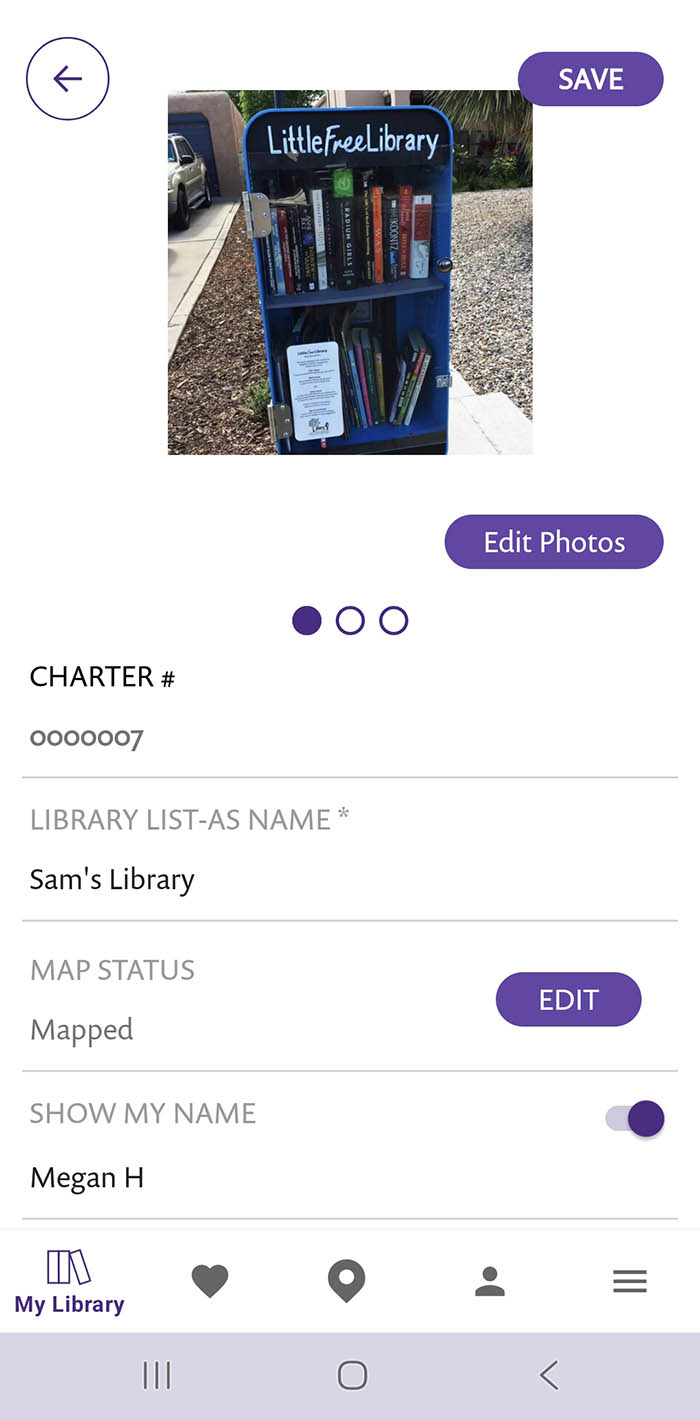
The Map Status field is important! That field must be set to Mapped or your library will not be publicly visible on the app map or web map. If you decide to take your library down permanently, change the Map Status field to Taken Down Permanently to remove it from public view. Set your library’s location by Address or GPS Coordinates.
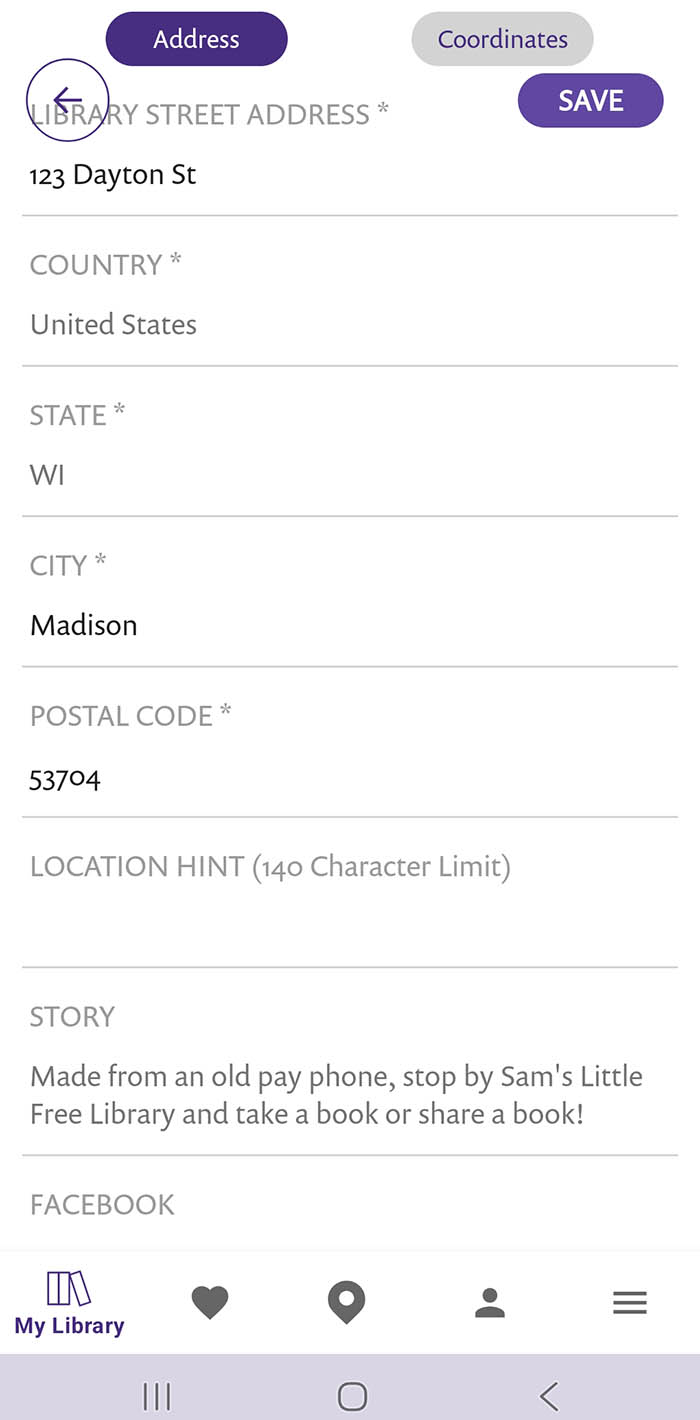
A Location Hint is a nice way to help visitors find your library. Examples might be, “Library is next to the park shelter” or “Bright yellow library in the corner of the yard.”
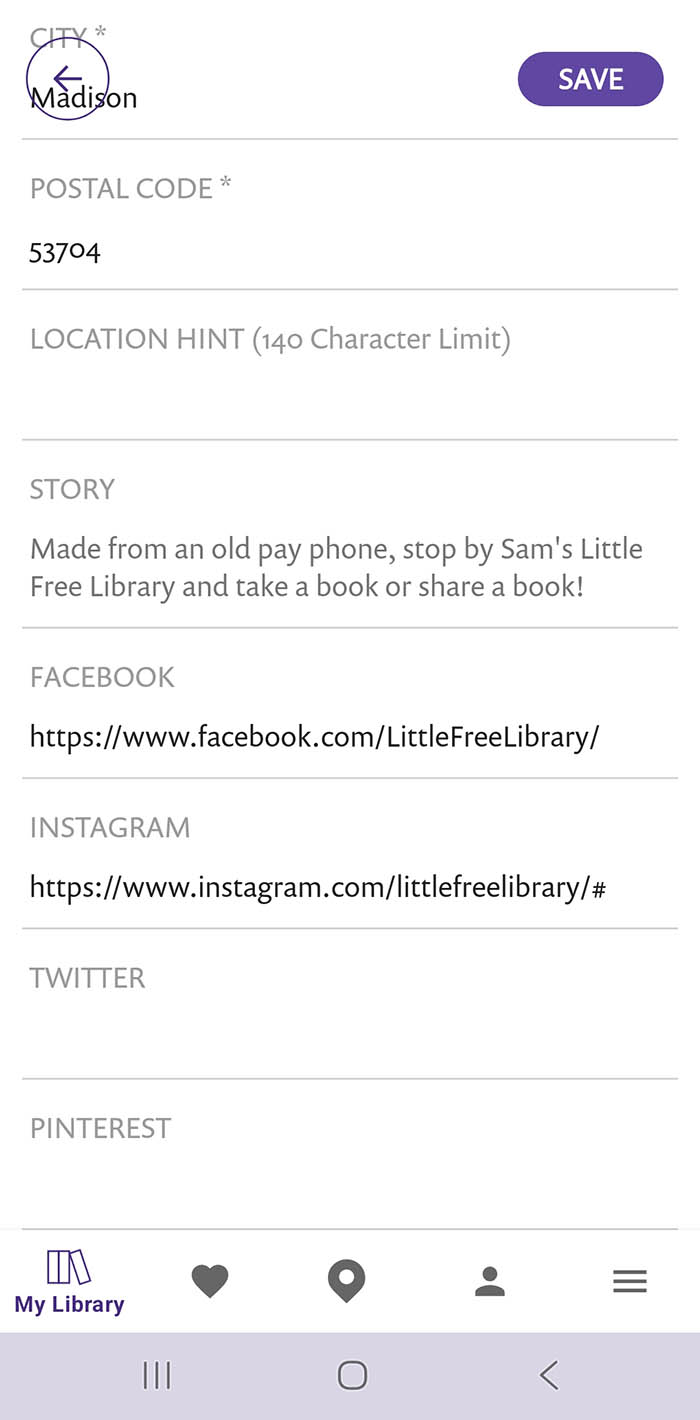
Don’t forget to link to your library’s social media accounts by copying and pasting links into the appropriate fields! Instagram and Facebook are popular choices for many stewards. Filling in a Story can give visitors background on why you started your Little Free Library and anything notable about it!
Web Portal #
You can make all of the same changes in the web portal as you can in the app. In the portal, view the Libraries tab. If you steward more than one little library, you will see a list of all of your little libraries on this screen. Click on the library you would like to edit.
You will see a screen where you can edit all of your library’s information, including its address, GPS coordinates, story, indicators, announcement, and more. Click on the Guest Book tab to enable or disable the Guest Book feature, and approve or deny pending guest book entries. Click on the Issues tab to view open and resolved reported issues about your library. Click on the Photos tab to add or edit library photos.