
To get directions to a particular Little Free Library, tap on the library’s pin on the map. By default, you will a see a screen with three options: View Library Details, Add to Route, or Get Directions. Tap Get Directions and your phone’s default map application will open with driving directions to get to that library!
If you have configured your account settings to automatically show the library detail screen when you tap a pin, then after tapping on a library pin, tap the i icon. Then tap Directions. A pop-up will appear asking if you want to get directions to this library or add it to a route. Tap Get Directions.
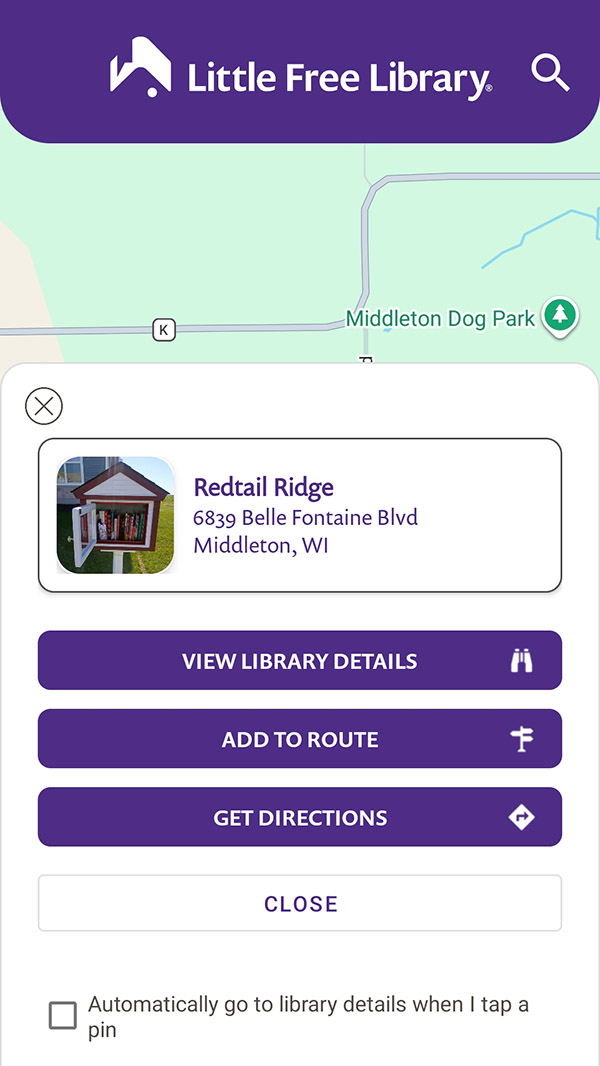
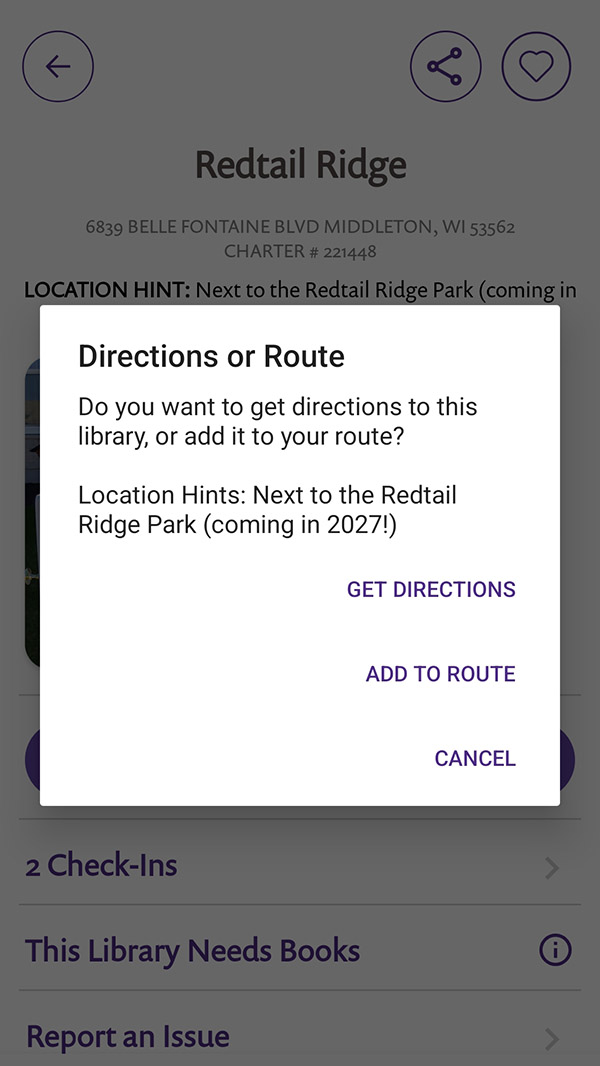
The Get Directions feature will use your phone’s default map application. On Android devices, this is usually Google Maps. On iOS devices, this is usually Apple Maps.
Your current location will automatically be entered as the starting point and the library’s address will automatically be entered as the destination. By default, driving directions will be provided, but you can adjust the settings within the map application to get walking or biking directions.